We’ve changed broadband supplier. I’ve reset the Dongle but when I try to connect to our new WiFi I get this error message
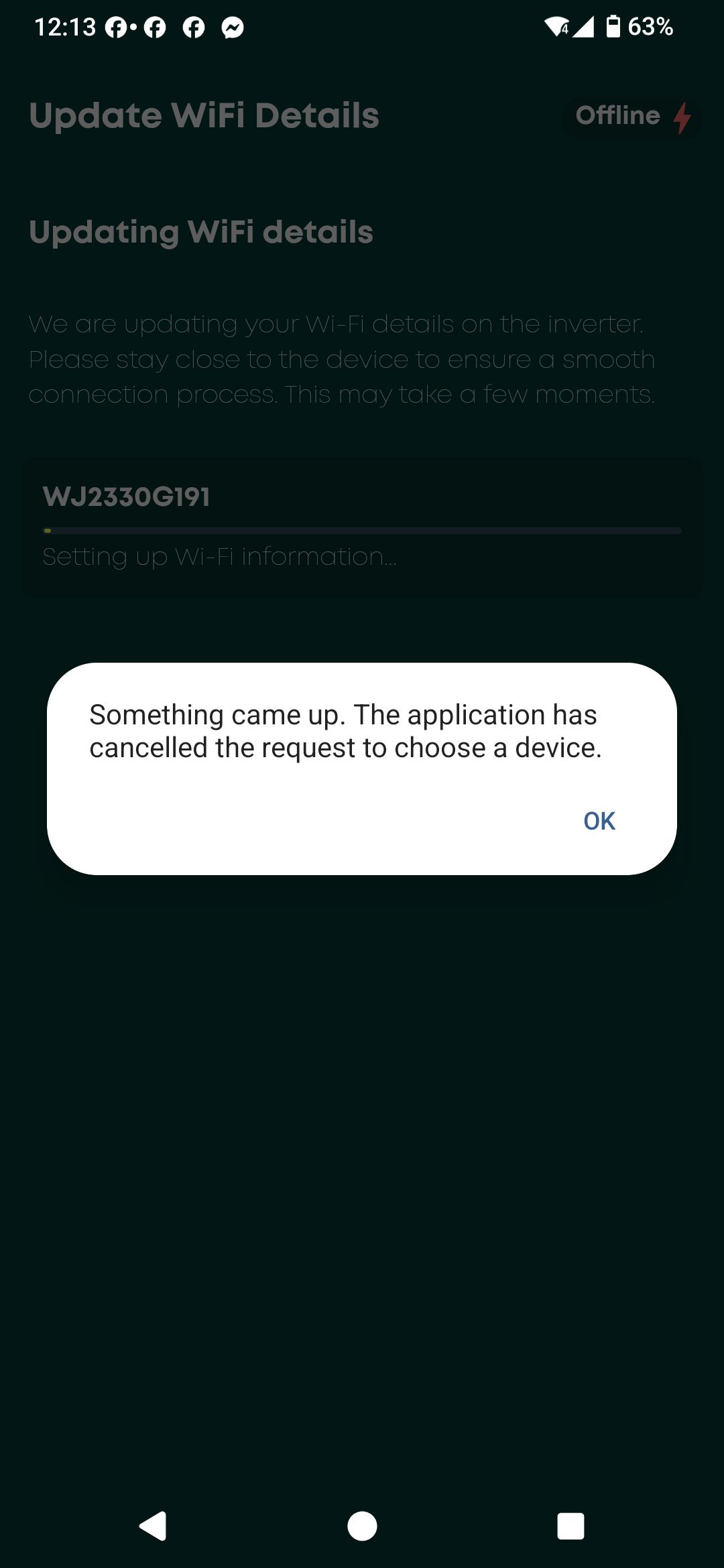
change your new broadband to have the same network name and password as your old one, turn the 5GHz network off and it should connect OK
if you have reset the dongle to factory settings then you will have to start again
try following the installer wifi setup instructions WiFi Dongle Connection Guide
there are videos on youtube of how to do this. You connect to the wifi hotspot that your inverter is putting out, login to it using a browser, then search for your home wifi and select it
you don’t need to use the app
When I connect to the Inverter WiFi and enter 10.10.100.254 I get an error message saying error 401 unauthorised. Authorisation required.
don’t know, sorry
Thanks for trying
I dare say your device, phone or tab?, is connected to your home wifi by 5G. Dongle only works at 2.4 so won’t see it. Either change setting in phone or as Geoffrey says turn 5G off on router.
Regards.
I’ve turned the 5G off on the router but still get the same error message.
I have now established that my firmware is out of date but when I go to the the firmware update page there’s no files to select at 10.10.100.254/EN/uboot.html
which firmware, the dongle or the inverter?
there are videos on youtube of how to install inverter firmware, you basically unplug the dongle, plug it into a PC, copy the files onto the USB drive and then put it back in the inverter.
firmware is available in the givenergy installer resources (again google for it)
Thanks. I think I need to wait for GivEnergy to contact me as I really don’t know what I’m doing. Ours has an internal Dongle so I don’t even understand how to access it.
Have you go an AIO and Gateway?
These are the instructions I got from GE Tech support when I needed to update my firmware after installation was completed.
Sorry, had to split the screenshots of the guide over two
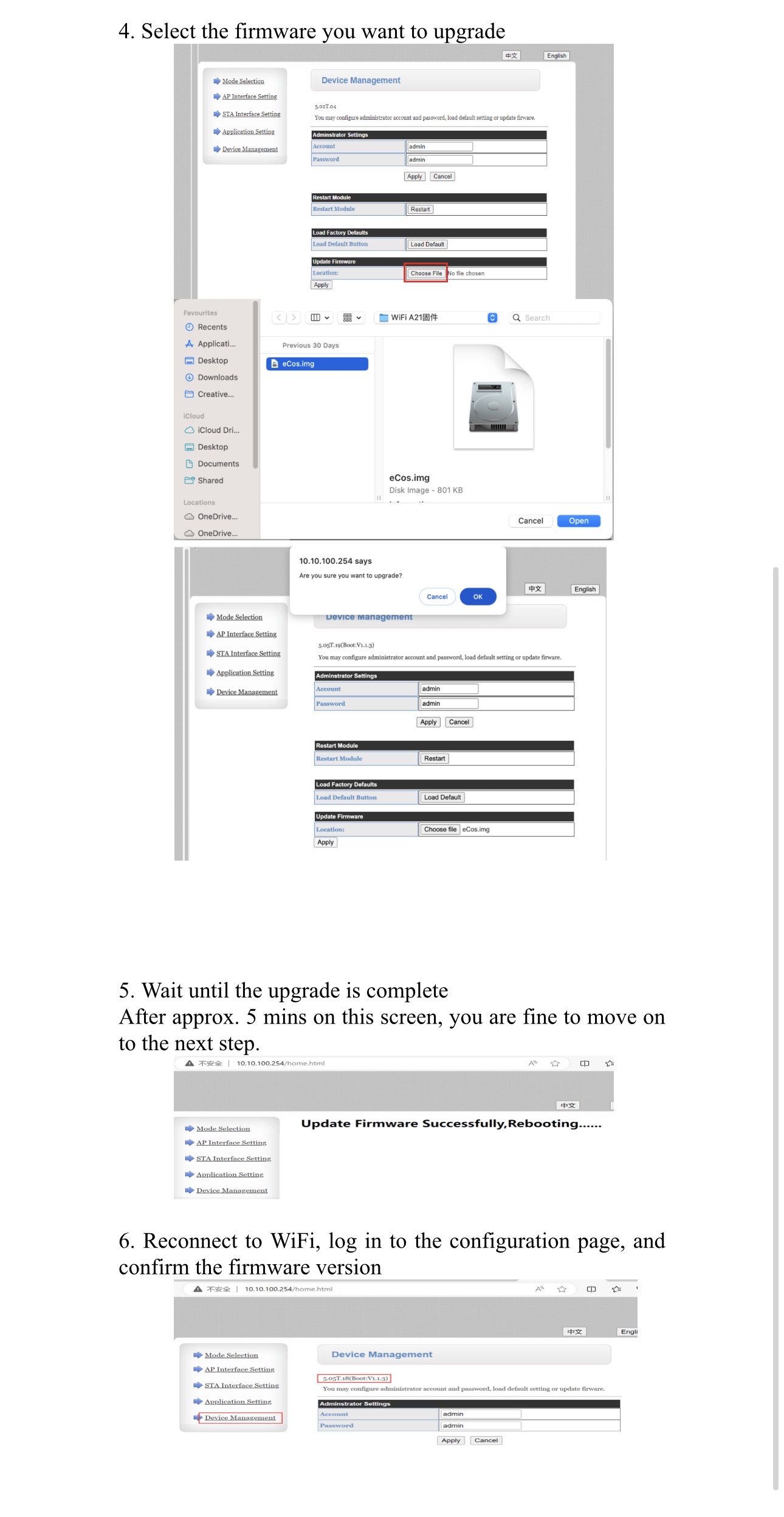
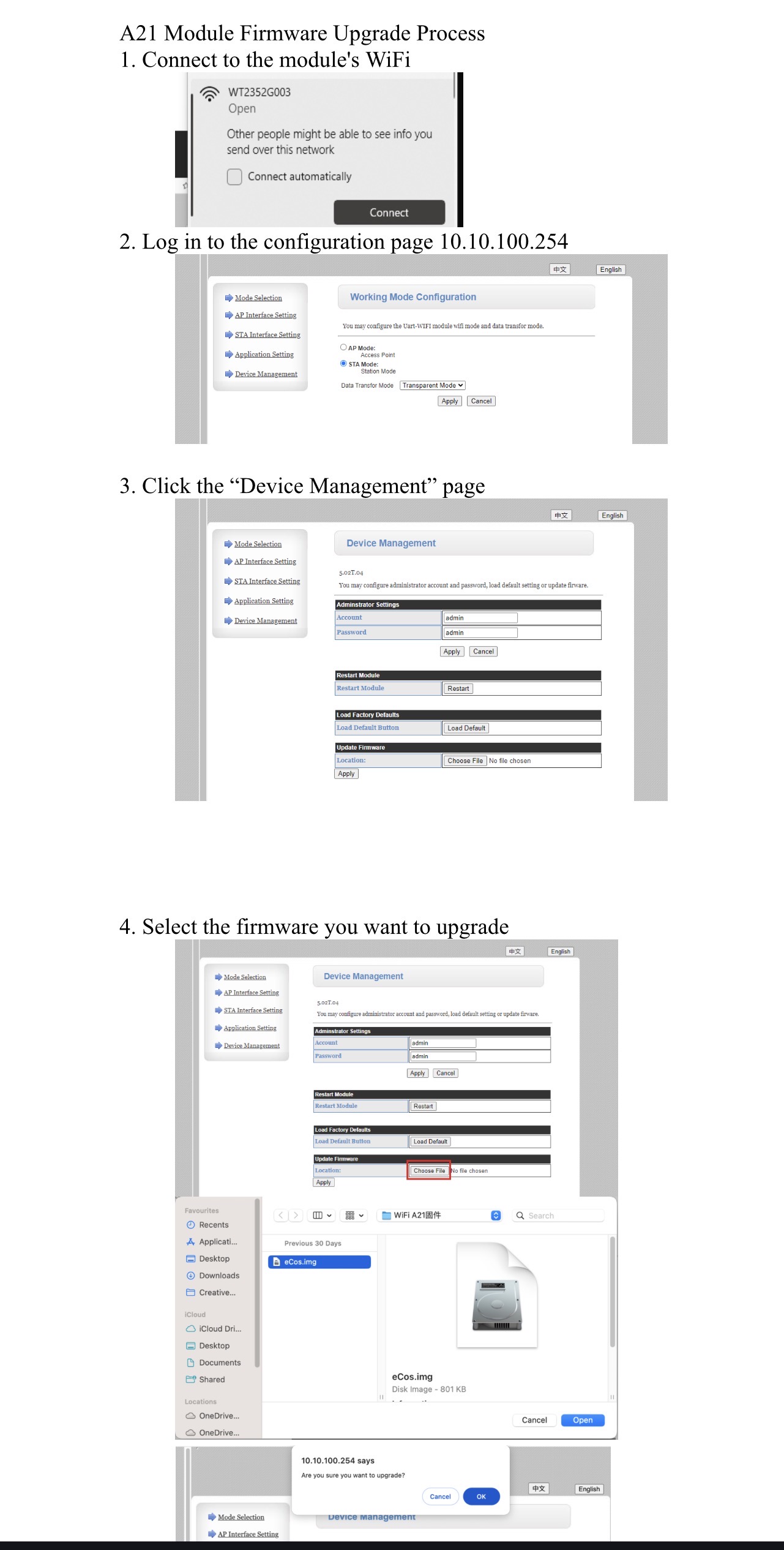
- Right click the file - Select “Extract all” as an option from the window that pops up
- In this new window select a destination for the folder to appear in, I prefer desktop for ease of access
- Hit extract all to which the files will appear in the selected destination
- Locate the folder named the same as the downloaded package, in this folder will be the .bin files you need to use.
here’s the instructions from the other givenergy forum:
To update the AIO BMS use the AIO USB port Next to the DC Breaker format USB stick FAT16.
To Update AIO Firmware manually that requires the USB port inside the AIO side cover (4 screws) and DIP Switch changes, format FAT32 and copy the files to it.
To Update Gateway Manually Turn Bypass Breaker ON > Format USB stick FAT16 and Copy the 2 Gateway Files to it, set the Dip Switches to Dongle mode and Insert the USB stick, the Gateway will reboot instantly and perform the upgrade. Turn Bypass off again when everything is complete.
All the Latest files can be found here Installer resources | GivEnergy
Scroll down the page to Firmware > Batteries > AIO Complete
Download the package and extract it to a folder. The latest complete firmware for the AIO which includes Gateway Firmware V14 and AIO Firmware AO.620 are included as is the Dongle firmware.
Install Notes
BAAA0013 - AIO Battery Firmware. (Load via USB next to DC Breaker)
Chipset v27 - HF21 actual Chipset update. Load via Uboot page, not the Device Manager page. Note DIP2/3 off for better stability during the load.
D620-A620 - Latest ARM/DSP for AIO1 via USB drive (DIP switch to 0000), or USB A-A cable method Format FAT32
GAAA0014 - Latest Gateway Update USB file with associated bconfig file