Hi,
Trying to set up the Givenergy EV Charger but the QR code has faded.
When i reset the charger it broadcast the following EVSE-53518754.
What is the Serial number that i enter in the app? There is another qr code inside the charger but the code includes some letters - 2404WYSC 23-453511 55 and QR doesn’t work.
What are the steps to set up in the app? Do i connect my phone to the EVSE and then continue in the app? If yes, what is the wi-fi password? I have tried 12345678, 88888888 and 45350425, nothing works.
Or, do i go to the app and enter EVSE and password there, then in the next step do i enter my home Wifi and password. It does ask twice for wi-fi.
Please help. Many thanks,
Karl
I hope this helps you.
What you are seeing is the SSID Hot Spot of the EV charger, it broadcasts for 15 minutes only after the EV charger is switched on after that time it stops broadcasting and you cannot install again until you power cycle the EV charge and it beeps.
To install you need to use the GE App and you need 3 pieces of information which were printed on your Original QR Code sticker.
Serial Number, Hotspot SSID and the Hot Spot Password.
From what you have said we can determine that your Serial No is as follows the numeric part of your SSID (53519754) proceeded by(112888) therefore Serial No = 11288853518754 Your WiFi Name is EVSE-53518754 and use WiFi Password of 45350425 which is the WiFi reset password.
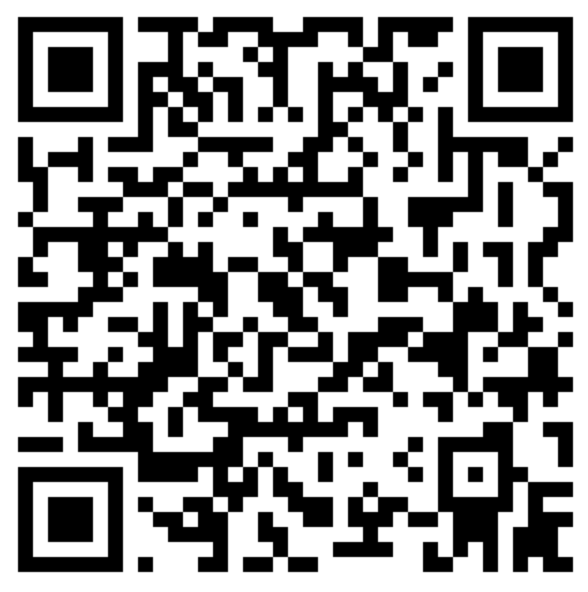
I have created a new QR code for you, so you don’t have to key all the three items above into the GE App, and I have some instructions that I created for someone I sold my GE Charger to earlier this year, for you to follow
- Turn the EV charger mains supply off and then on again. (Listen for the beep)
- Launch the Givenergy App that has already got a valid SSO login created and works correctly
- From the App menu select EV Charger
- Select Start Setup
- Scan the QR Code (Attached)
- Turn Off DATA on the mobile phone being used for the install
- Enter your home WIFI SSID for a 2.4ghz WIFI network that is strongest at the EV charger location.
- Enter the password to gain access to the home WIFI connection (selected in step 7) then click connect
9.* Choose Option A EVC installed with internet connectivity and mains supply only (GivEnergy’s current recommendation) - Enter The Max size of the fuse in the Meter Cupboard usually either 80amp or 100amps (check first) and choose WIFI for the connection type.
- Complete the install it can take quite few minutes of the app with a rotating symbol to complete, be patient it has not locked up.
- A notification message will appear on the GE App phone and the portal saying the EV charger is installed.
I’m wondering if I have the same issue.
New smart meter installed a week ago, charger not worked since then.
Power on.
If I power it off and on I get the hotspot wifi, see photo.
I cant find a QR code anywhere. I’ve taken off the bottom front cover and nothing in there and nothing with the installation manual I was left.
I’ve contacted my installer but no response yet.
Any thoughts??
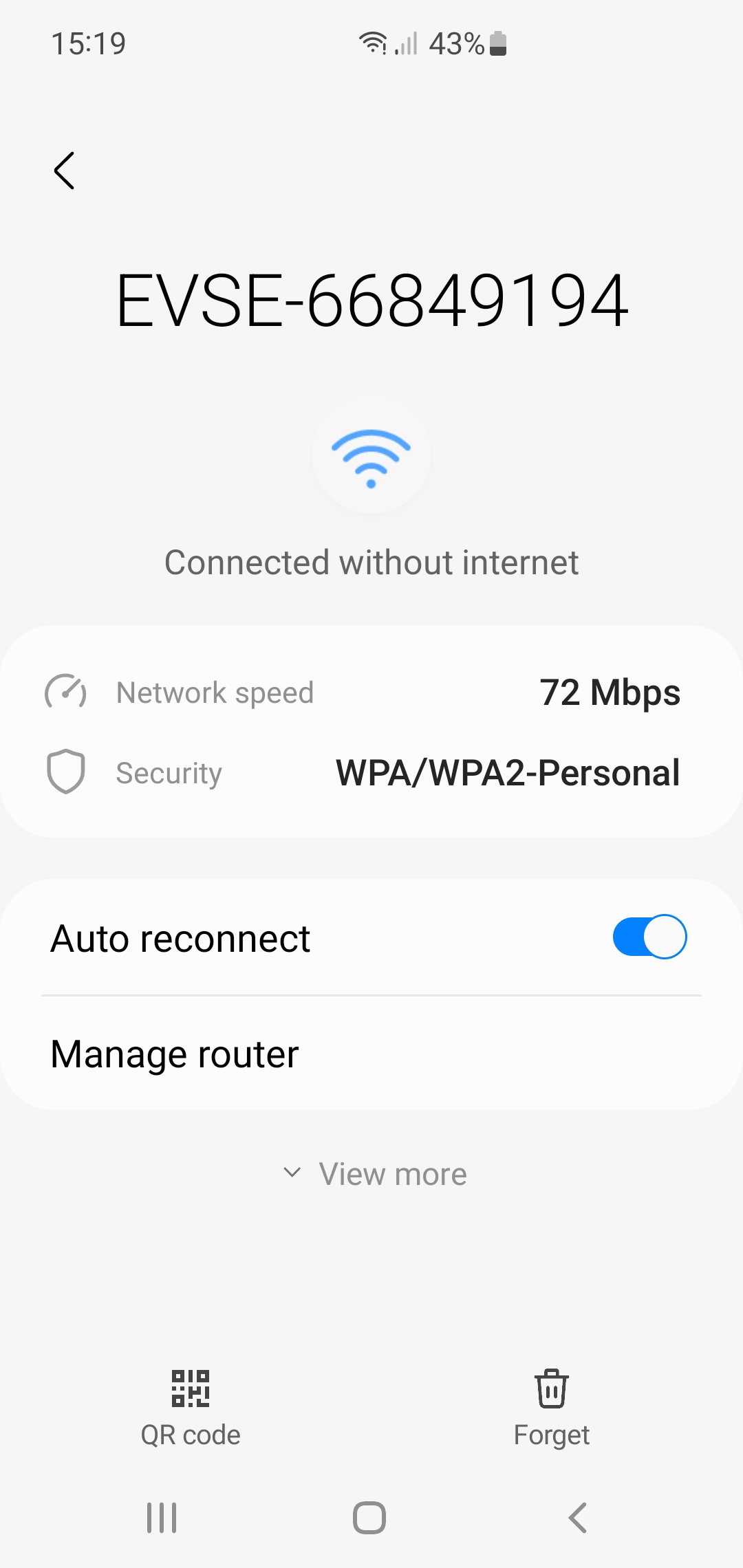
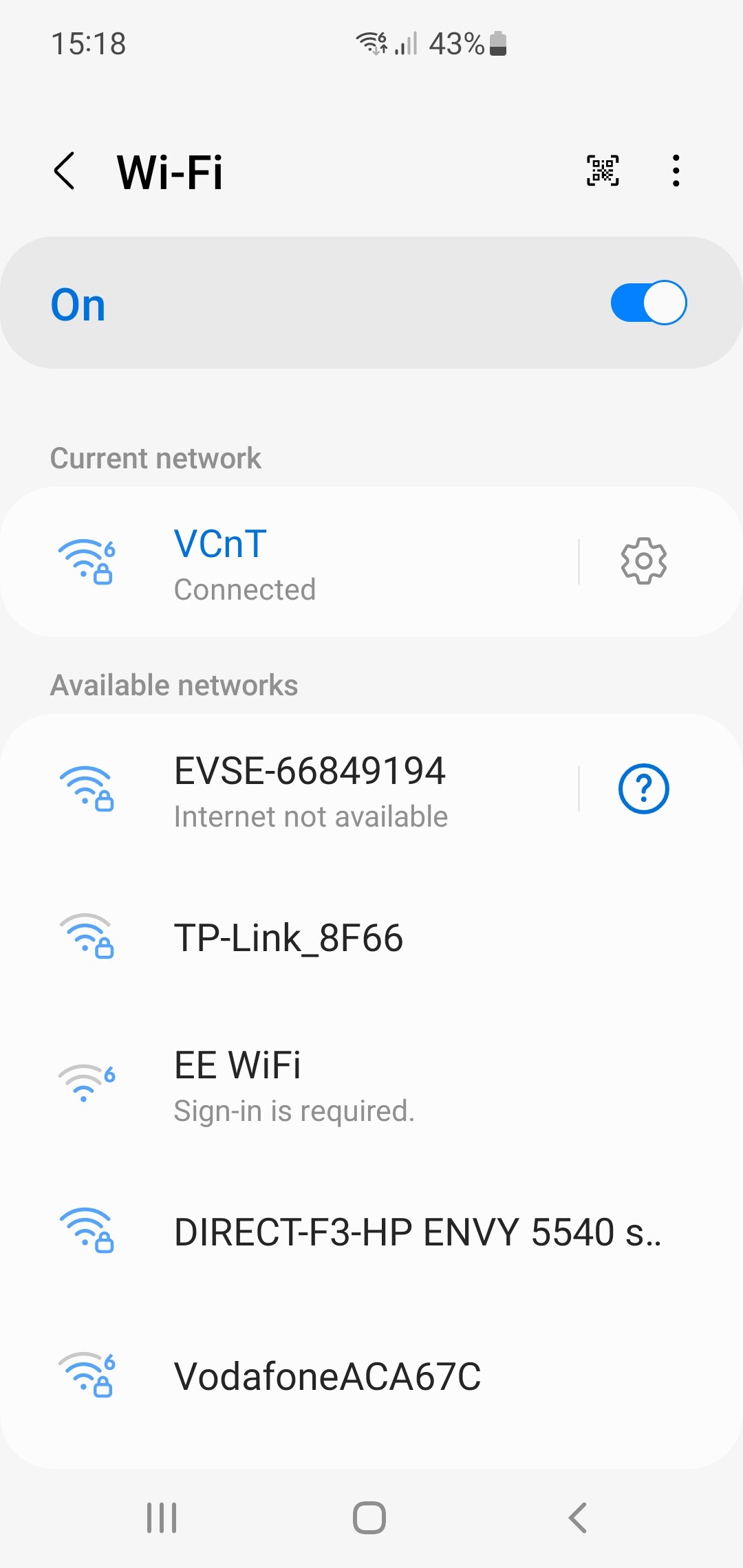
@TooMuch
Reading your helpful response and in addition to my other reply, I’ve worked out my serial number from my GivEnergy app (see photo) but I dont have “Select Setup” on my app, see list under settings in my screenshot.
Are you able to help? 
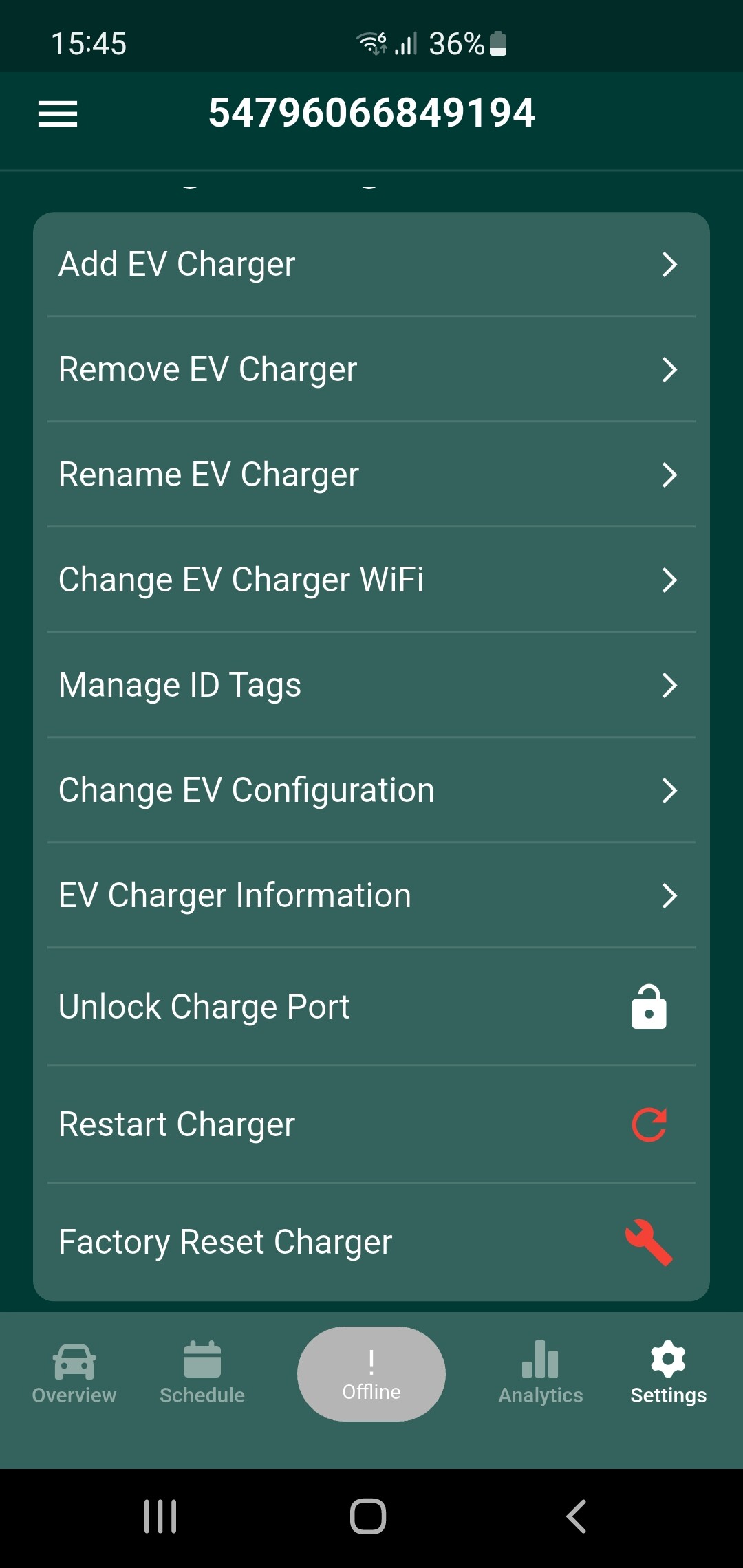

That’s because your app is displaying an EV charger is already installed. The instructions I gave are for someone who is installing the EV for the first time.
You should be able to see in the portal if you have the EV card loaded on your dashboard. The actual errors if any and the installed serial number.
If the EV charger is solid blue when not plugged in and solid green when an EV is plugged in then it is connected to Wifi correctly. If it flashes blue or green then it is not installed correctly. I would try since you have a valid installation on the APP choose changing the config to Option A (None Cloud) then plug the EV in and then if it is showing connected then press the charge now button to test charge functionality.
If all else fails you may need to reset to factory defaults and start again from scratch. Though I wouldn’t do this until you have exhausted all other avenues.
The other thing to check for is if the CT clamp of the EV charger has been moved during the Smart Meter Install.
The CT clamp was undone during the smart meter install. As shown by a photo in another post by VEChamberlain elsewhere in this forum. FWIW I made some useful suggestions about getting the details from the QR code sticker in the other thread. I was waiting for him/her do the CT clamp up or move it to the other side of the Henley block to test it. But I’ll leave them it to them now.
Ah, I have replied in the other thread… all working, Thanks for your time and help! Vicky
1 Like
My installer never left the external QR sticker. I only have this internal label: 2404WYSC / 23-453512 / 39. Can this be converted into the AP SSID/password? I need to reset the charger so I can get into AP mode and switch it to ocpp on my HA.. I’m actually hard wired, so if there’s another way of getting in to charger internal settings?