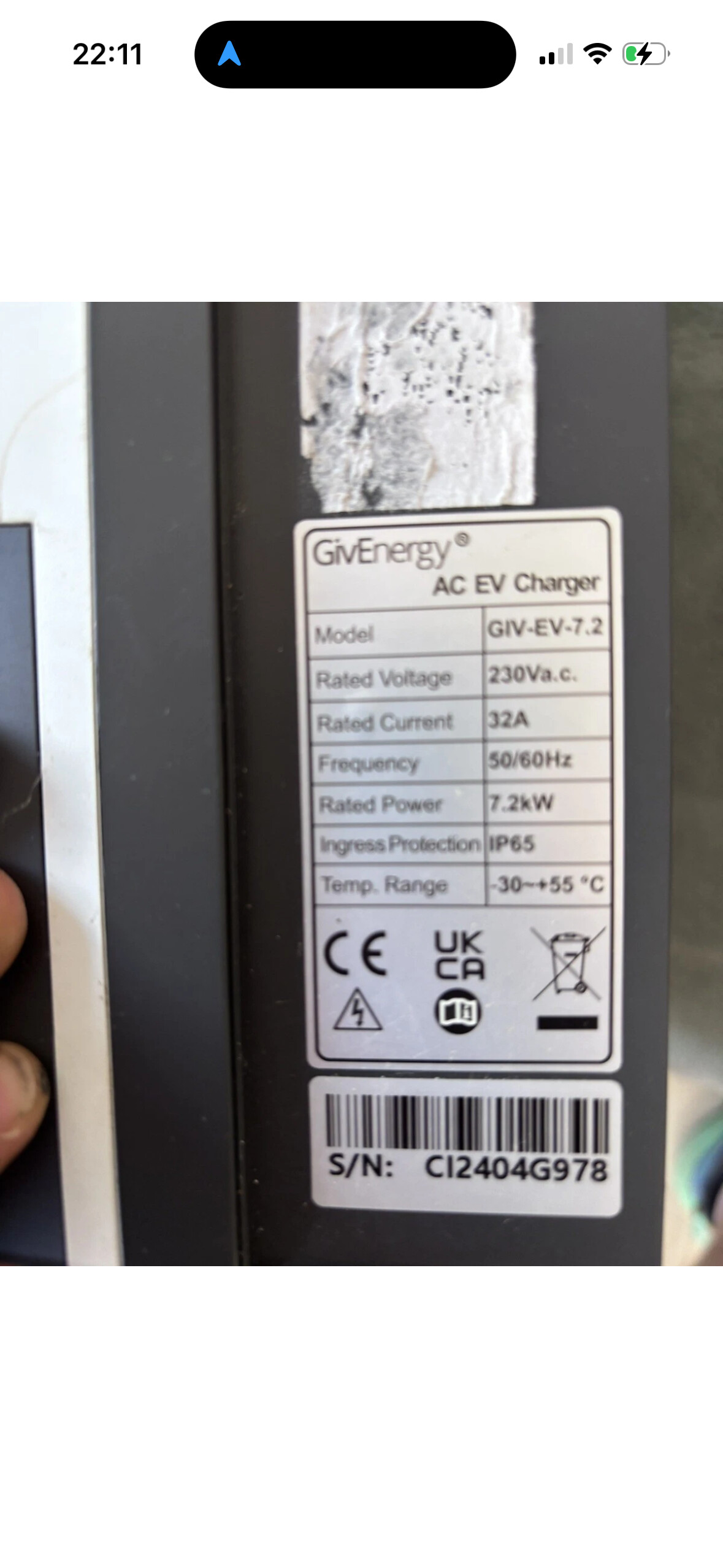
Not sure if its the same on the chargers as it is on the inverter but if you have an ip address from LAN, can you go to that address and see the interface? may not be able to get the original details but maybe able to reset?
Thanks for your input. I have run Nmap, a network scanning tool, against the charger and, as far as I can tell, there are no open ports. Based on what I have found so far, it appears that Wi‑Fi may be the only way to access the web interface, although I could be mistaken as I only started my journey with GivEnergy equipment this week.I have also opened the unit and found a serial interface that I may be able to utilise. However, if there is a simpler way to regain access, I would prefer to try that first.
GivEnergy EV Charger Recovery Guide (Missing or Unreadable QR Sticker)
If the QR code sticker on the outside of your GivEnergy EV charger has faded or become unreadable, there may still be a way to recover the required setup information.
WARNING: Only proceed if you are competent and comfortable working around mains-powered electrical equipment. Always isolate the charger before removing any covers.
Remove the Covers
The charger has two covers that need to be removed to access the internal components:
Isolate the charger from the mains supply.
Remove the outer cover.
Remove the inner cover.
Locate the internal electronics and tamper switch.
Factory Reset Procedure
Re-energise the charger.
Locate the tamper switch inside the charger.
Press the tamper switch once to place the charger into tamper mode.
Press the tamper switch 10 times.
The charger should emit two beeps and restart.
After restarting, the charger should expose its internal Wi-Fi Access Point (AP).
Recover the Wi-Fi Password
Inside the charger you should find a very small QR code.
Use your phone’s camera or QR scanner to read the code.
It will typically contain text similar to:
XXXXXXX-12345678
The second part of the code (after the hyphen) is the charger’s default Wi-Fi AP password.
Example:
2404ABCD23-12345678
Wi-Fi password:
12345678
Connect to the Charger
Connect your phone, tablet, or laptop directly to the charger’s Wi-Fi network (usually named EVSE-xxxxxxxx).
Use the password recovered from the internal QR code.
Do NOT use the GivEnergy app at this stage.
Access the Local Web Interface
Once connected to the charger’s Wi-Fi network, open a browser and go to:
Thanks for this. In my case I can log onto the access point without any trouble but I cannot log on to the web page found at 192.168.4.1. Entering the default password 12345678 or any any other number I can find on the box does not work, and my installer said he never changed anything. So I can’t get to those settings. Any suggestions? Paul
Right, first we need to check whether you have access to the default credentials. They should be on a sticker attached to your charger.If you do, you’ll need to perform a factory reset, which will return the charger to its default settings. After that, your password (12345678) should work again.Before you do any of that, however, there’s one simple thing worth checking:When entering your password (12345678), make sure you click the “Login” button. Do not press Enter on your keyboard. This has caught a few people out before.Good luck!