Because my inverter’s ethernet port failed, I got a new inverter fitted on Thursday. IT was left connected to my network by WiFi (long story). Gen 3 5kW Hybrid.
Since then, certain devices on my network have been playing up (not getting through to the internet, whilst others carried on fine). To try and solve the problem i turned them off and on again and even did that to my router. Some things carried on working but others did not!
Today (Saturday) my TV on ethernet stopped accessing the internet (it was one of the good guys) so I looked at its settings and saw the IP address 10.10.100.109 and knew this to be wrong - all my network is on 192.168.0.xxx. On top of this the Gateway was 10.10.100.254 instead of 192.168.0.1. So i wondered where these odd IPs were coming from.
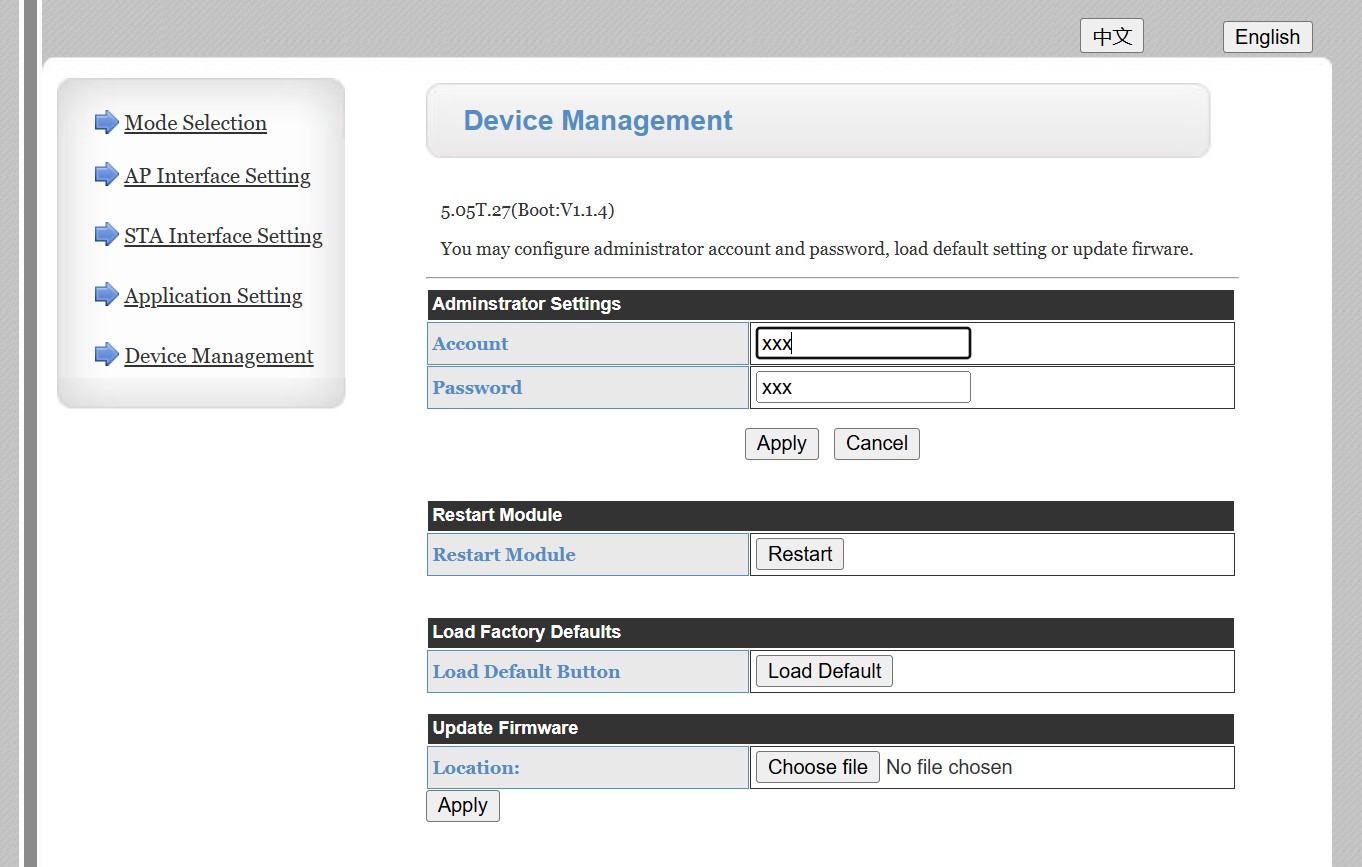
I tried logging in to 10.10.100.254 and got through to a setup web site that told me that this is the new inverter! So I think somehow the inverter is dishing out IP addresses.
Others will be along shortly who know about the Gen 3’s (I don’t) but I am curious: it seems that the inverter is happily acting as a standalone wifi router and handing out IP addresses willy nilly, but you say it was “left connected to [your] network by WiFi”.
Is it actually appearing on your 192.168.0 network router, and is it actually connected to the internet through it (ie is, for example, the Giv cloud being updated by it)?
I’m no expert when it comes to networking, just what I’ve learned over the years playing with this stuff. I’m pretty confused ATM and my conclusions from what I’m seeing may be way off the mark.
I have many devices on my network, some Ethernet and some WiFi. Where I can for devices that are static in the house, I have static addresses set within the devices (192.168.0.100-254). Other devices have reserved IPs in my router (192.168.0.70-99). Things that move like phone or laptop, rely on Auto DHCP. The DHCP address range of the router is …2-99. It’s been fine for the last 12 years or so.
I’m typing this on my static desktop with its static IP which is currently connected to my regular router and giving me internet access. My phone is currently on a normal IP and is connecting to the Internet too! I also have static camera systems and Home Assistant, and they all seem OK.
But my laptop (Auto DHCP) is currently connected (somehow) with the IP 10.10.100.117 and I have no internet access. A while ago, my Ethernet Auto DHCP TV was connected to 10.10.100.102 and did not have Internet but right now, and still showing that same IP, IS connected to the Internet!
I have a number of other devices, like smart speakers that have been behaving oddly but I don’t have a clear understanding of that behaviour yet.
Despite all this, the Inverter IS updating the portal.
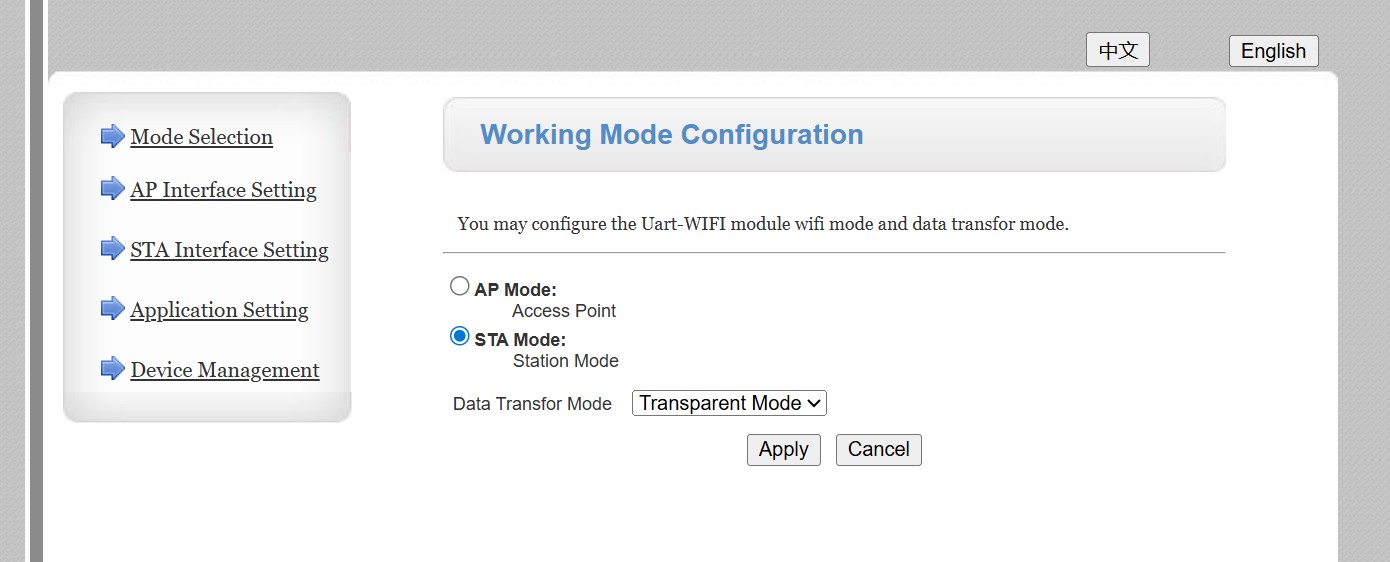
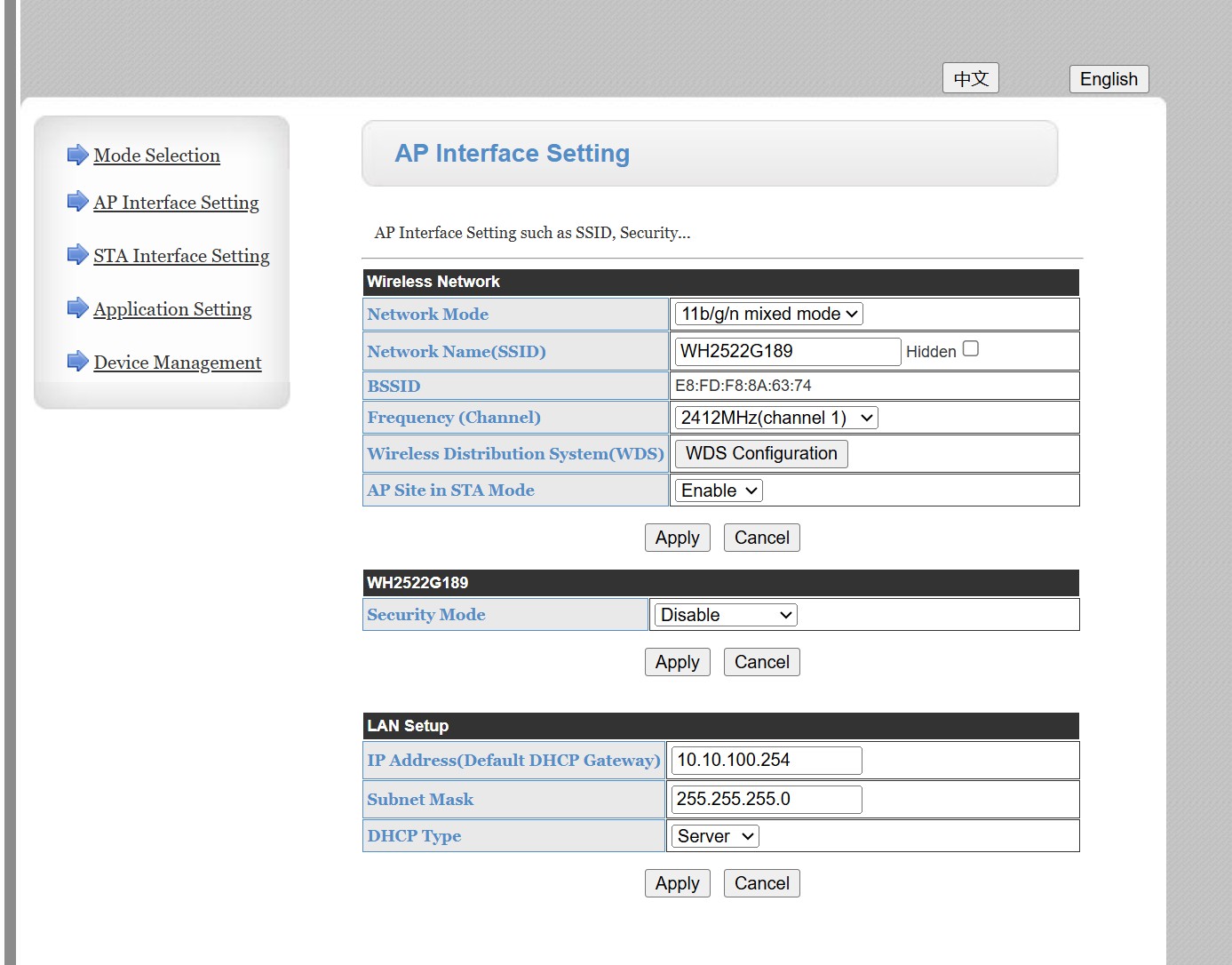
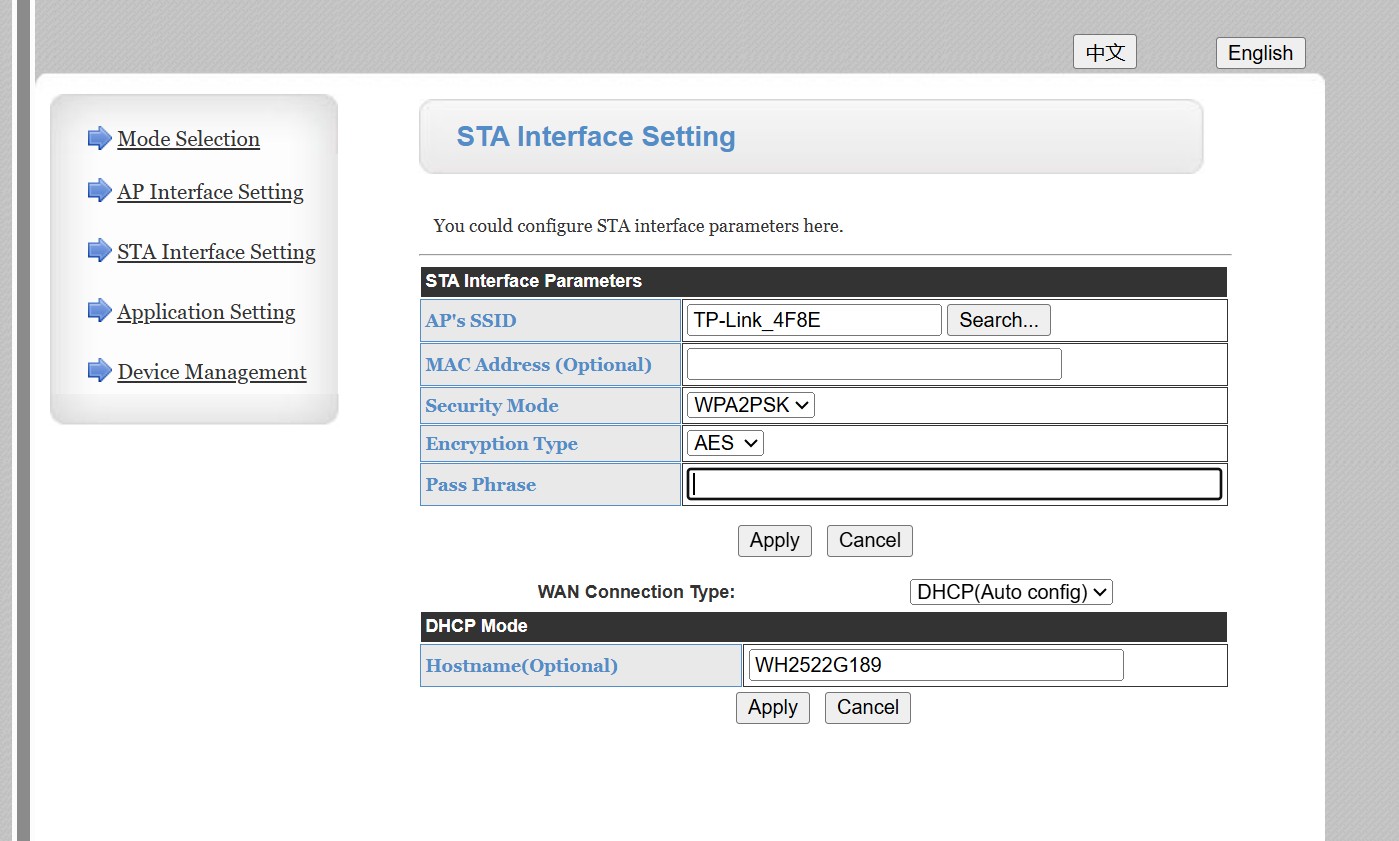
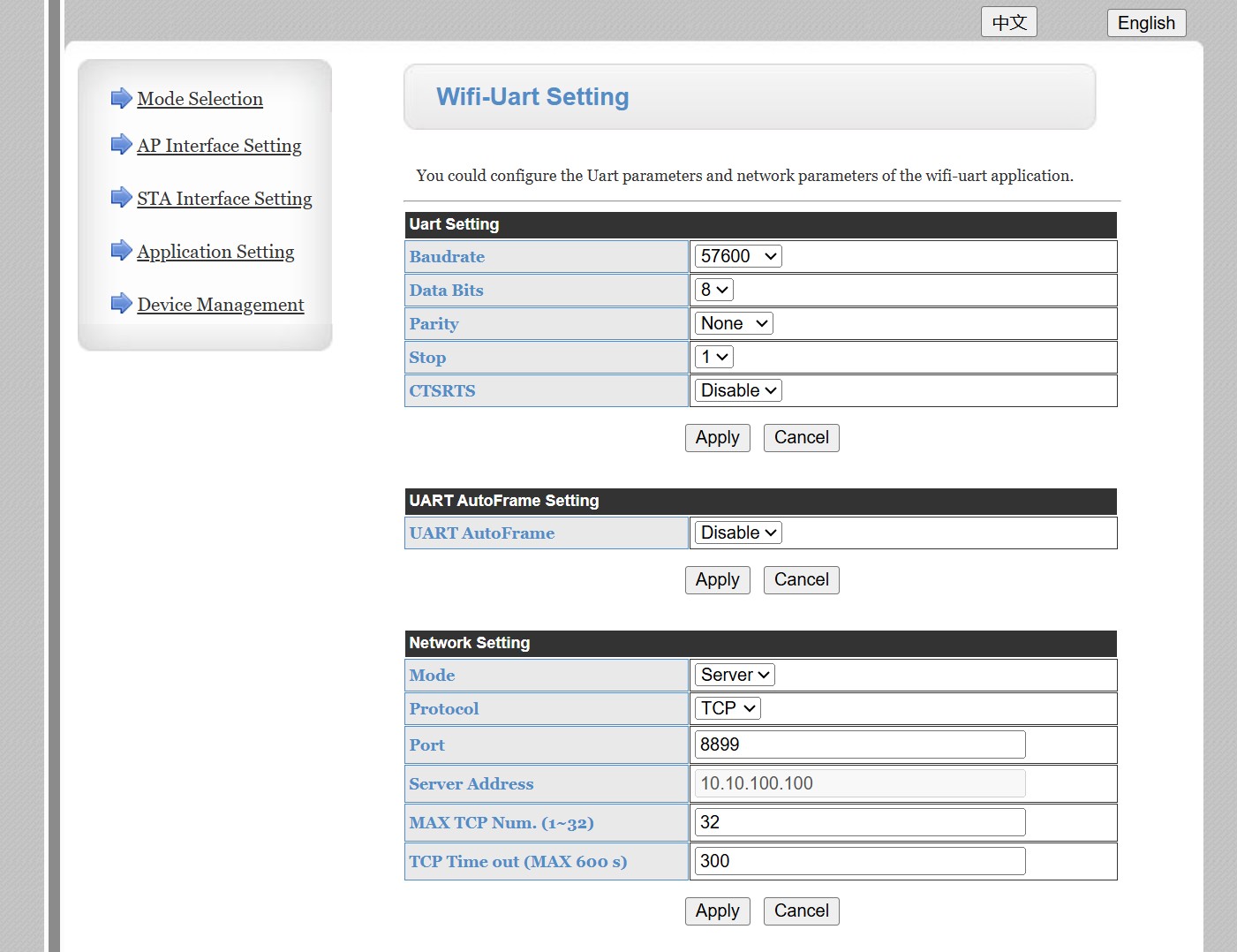
I was able to log on to 10.10.100.254 (the Inverter) using my laptop and I took screen shots of the various settings screens. But I need to go back to the laptop/hot spot mode to upload them here. Wait out.
I expect if you continue on 10.10.100.254 there will be an option to disable DHCP. But yes basically it sounds like it is acting as a DHCP server. It has always been the case on giv kit it functioned as a open network once connected to yours it would still broadcast its own SSID which if not locked down by the installer was open to all. For my first giv install from a MAJOR energy supplier I actually had to instruct them to lock it down! IE change the password on that ssid.
I have a Gen 1 AC3.0 with external dongle but I know it well! I have grappled to connect my inverter to my house’s network several times and I also revert to the instructions.
First, download the dongle guide listed previously because it contains information that you will need.
Then follow the steps closely as you are communicating with the inverter using wifi.
Your inverter isn’t set up properly yet! 10.10.100.254 is the IP address of the inverter’s local network which is used for setup. This is explained in the dongle guide.
You need to tell the inverter details of your router’s SSID. Your router will broadcast this and you can choose the matching SSID.
You will then be allowing the inverter to speak to your router. Your router should allocate an IP address for your inverter. I would then make this address static on the router.
You must follow the instructions! You may find that you cannot connect because the inverter only works on 2.4 GHz. You may need to force this via router.
Concerning your TV, it will be trying to access your inverter and not your router on 192.168.0.xxx. This will be the same for other devices. For any that are failing, check the SSID and make sure that the devices are trying to connect to your house’s network and not the inverter.
I hope that gets you started. The process is far from intuitive.
What is your router?
You say that the new inverter was fitted on Thursday but doesn’t seem to have been set up properly.
When you are all done, you can ‘forget’ your inverter’s local network which should stop any devices trying to connect to the inverter.
This is a general networking point, nothing to do with Givenergy:
There is a very good case for “If it ain’t broke, don’t fix it” but I strongly suggest that you consider moving your kit to having fixed IPs at the router. My own and many other people’s experience is that fixing IPs at client level is just storing up issues for the future - when you forget which IPs you have assigned to which device and have two or more things trying to use the same address. One day (it may be quite soon if your router is 12y old!) something will break and you will need to re-setup your network. It will be MUCH easier if all clients are on DHCP and just take whatever address is given to them, and you can sort everything out at the router.
Yes, I’ve recently seen others recommending that. But I started down this road 12 years ago and wanted devices to be able to work still if the router failed. IE Home Assistant and things it was controlling. I maintain an Spreadsheet of the IP I’ve allocated and have never had a conflict yet (touch wood). I’ve also been through a number of routers, always setting them to my SSID/Password, and I was grateful that I didn’t have to reserve too many IP addresses as the majority are static. If I was to start all over again…
I’ve gone through the guide and cannot see anything not already done apart from locking down the AP. Despite the weird behaviour of other devices, the inverter is working ok, communicating with the portal on its IP of 192.168.0.9, and accepting commands from it.
I’m going to leave it there and get in touch with the installers on Monday.
Are your devices connecting to the open wifi on the inverter? AP interface shows no security on the dongle. Usually these are sent as open so you can connect, set your wifi link but then you need to set the security mode on the dongle so it is not wide open! Currently you have an open wifi link to your network.
No, they are connecting to my router or one of the extenders. If i have a static IP set in the device they do OK. It’s the ones with automatic DHCP that are picking up the 10.10.100.xxx address! I’m getting round the problem where I can by setting more devices as static IPs.
I don’t think there’s a bridge between the Inverter’s AP and my LAN. But there’s obviously something going on there!
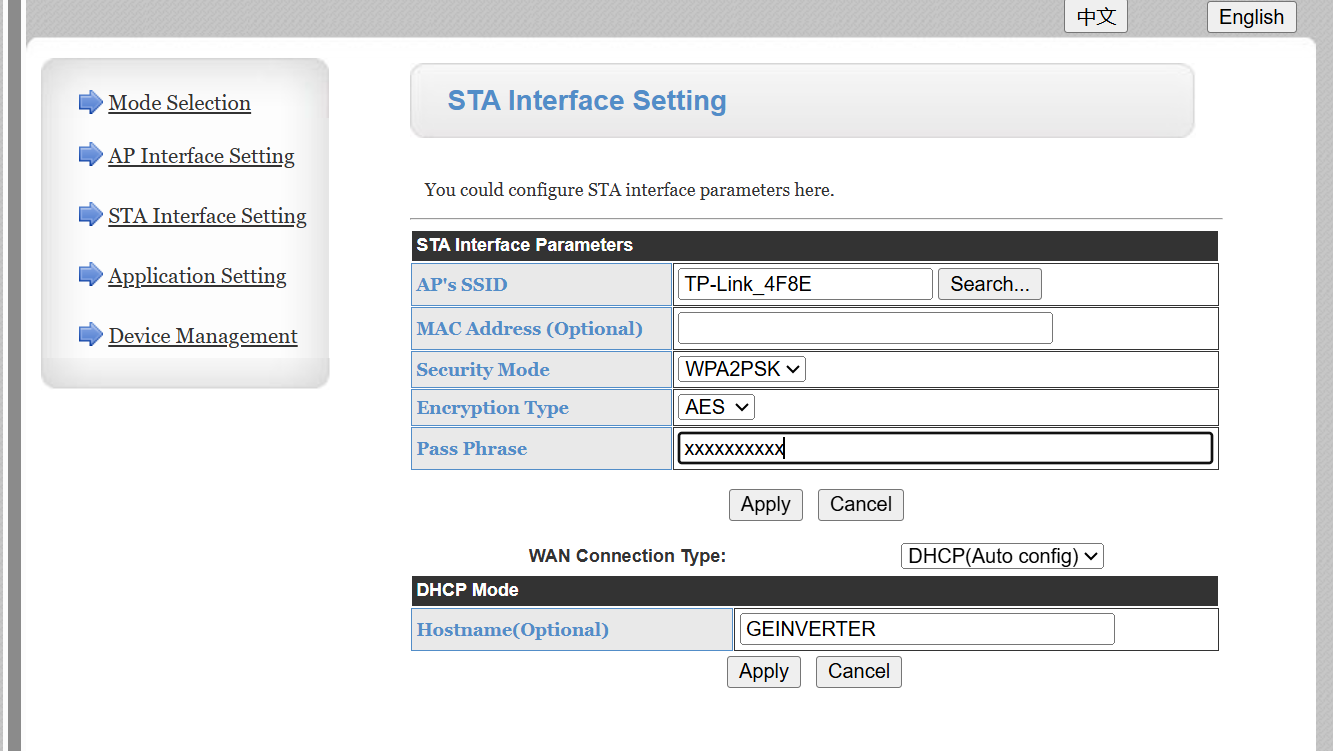
It seems that you have set the host name of the inverter on the sta network (dhcp setting) to be the the same as the network ssid on your ap network. So on your home WiFi the inverter is presenting itself under a conflicting host name (I.e. using your ap WiFi ssid) which confusingly is the name of another network. On the sta interface setting change the dhcp host name to something that is not the name of WiFi network and something you will recognise on your router/network. So the inverter is not providing the bridge it just looks like it because you have confused the dhcp protocol by not using a unique hostname on your router and now have 2 network devices with the same name.
Thanks for the suggestion. TBH I don’t see the problem as they are 2 different things that shouldn’t interfere with each other, but I changed the Hostname anyway to GEINVERTER.
One device (a skylight opener/closer) on a router reserved IP was playing up, but i rebooted it with the inverter disconnected. It now seems to be working OK. I haven’t tried rebooting it with the inverter running again.
I just tried a tablet (Auto DHCP) which had not been turned on for weeks. It connected to my router with a 192… IP. But I then selected the WiFi Extender that the Inverter is connected to and it connected with a 10… IP, so it looks like that problem hasn’t gone away. When i went back to connecting to the router it retained the 10… IP! In either case it still got through to the internet OK. After a while (~30mins) I note the IP has reverted to 192…
I just tried a phone that had not been turned on for weeks. It connected to my router but has a 10… IP! I also note that the gateway IP is 10.10.100.254, so it’s like the inverter is acting as a bridge.
But here’s a curious thing. One of my issues was that the GE App would not connect in Local mode and neither would GivTCP. I just tried them both and they are working fine now.
My 70 year old brain really doesn’t understand what’s going on.
So can you send a screenshot of your sta setting page as it currently is and have you done the restart inverter on the device management page after you gave it the new name ?
And am I assuming correctly that you WiFi extender is there because the inverter is a distance away from the main router and you are in effect using the WiFi extender as a network “ stepping stone” to the the main router.
There’s the screenshot with the pass phrase redacted. Yes I did do the restart and GEINVERTER is showing up in the Router’s wired devices. FYI I reserved an IP for the Inverter in the Router.
TP-Link_4F8E is the extender’s SSID which itself is connected to the router via the mains wiring and the TP-Link Injector next to the router. GEINVERTER is shown as a WiFi connected device. I also have an ESP32 driving a WLED display connected to it wirelessly. The TP-Link extender is on the opposite of the wall to the inverter.
It’s weird, but my phone is currently connected to the TP-Link extender too but with the regular 192… IP. I’m getting the impression that allocation of IP is a bit random whether it comes from the Router or the Inverter.
I think the inverter has not refreshed to give up it lease on the original 10.xxx.xxx.xx address. Sometimes because the way the router and the inverter works it can take 24hours for an ip address to be released and then reconnect if the network is active. Make sure your wifi extender is not also providing a dhcp (in addition to your router) and if would be a lot simpler if you could allocate a fixed ip address in your router for your givinverter named device and hard code that into the sta setting page because dhcp is just adding an extra layer of network complexity. If you had a fixed ip address then you can add that into the Givenergy app local monitoring settings and givtcp also and then everything is pinned down.
For now, I should add that I set a reserved IP for the Inverter a few days ago (192.168.0.9) and a static IP for the Powerline Extender months ago (192.168.0.191). It also has a DHCP Server setting which was Auto until today, but is now Off.
I didn’t want to hard code a static IP in the inverter in case i died or moved. Someone coming in might then find it hard to connect to!
From what I have read here what’s happening here is that your inverter (or its WiFi dongle) is acting as a rogue DHCP server on your local network.
DHCP is a Layer 2 broadcast protocol, so any DHCP server on the same LAN can respond to clients on the same VLAN. That’s why devices are intermittently getting:
192.168.0.x → from your router (correct)
10.10.100.x → from the inverter (incorrect)
Whichever DHCP server replies first “wins”, hence the randomness.
Why this is happening
From your description, the key issue is likely that the inverter is **connected into your network via Ethernet while still running its own DHCP server on 10.10.100.0/24.
That effectively bridges its internal network into your LAN, so its DHCP broadcasts are now visible to all your devices.
If it were only running as a standalone WiFi AP, this wouldn’t impact your main network but once it’s physically connected, it becomes a problem.
Fixes (in order)
Disable DHCP on the inverter
This is the root cause
Disable or lock down the inverter’s AP
After setup, it shouldn’t be left open
Only one DHCP server on the network
Your router should be the only one
(Optional) Put IoT devices like the inverter on a separate VLAN/SSID and have a separate DHCP server on that VLAN
Quick test
Unplug the inverter’s Ethernet (or disconnect it from the extender) and reboot a problem device:
If it immediately gets a 192.168.0.x address, that confirms the inverter is the source
This isn’t random behaviour, it’s a case of a second DHCP server introduced onto the LAN via a wired connection, which will always cause exactly the symptoms you’re seeing.
On static IPs
It’s not inherently bad to use static IPs as long as they are documented, but configuring them on the device itself can become difficult to manage over time.
Best practice is:
Use DHCP for everything
Use DHCP reservations on the router for fixed addresses using the device MAC address
This avoids conflicts and keeps everything centrally managed.
Thank you, you have a good grip of my problem and explain things clearly.
I do not have the Ethernet cable plugged in
The only reference to DHCP is in the AP settings where i have DHCP set to server. The alternative is Disable. Wont Disabling it make it difficult to connect to it as an AP or could set eg my laptop to a static 10.10.100.111 or something?
I could add a password to the AP but haven’t so far.
Regarding your quick test - I did that with my skylight opener and it’s been fine ever since.
Right now, I’m using my Windows 10 laptop and have connected to the Inverter with its serial number as the SSID. But my laptops wifi settings page is showing IP 192.168.0.19 and Gateway 192.168.0.1. That has me confused! I can clearly use the Internet but can also access the Inverter’s setup pages on 192.168.0.9 but not 10.10.100.254. I haven’t tried but I’m pretty sure that if i turned the laptop off and on again and reconnected to the inverter, there’s a chance it would get the 10.10.100.xxx IP.
I’m going to speak to the installers tomorrow and then see about going over to Ethernet and even turning of the AP’s DHCP Server. I’ll report back.
Sorry I miss-understood about the ethernet cable being connected. You need to set the panel with the title WG2522G189 mode to WPA-PSK and set the pass phrase as something you can remember as to configure the inverter going forwards you will need to connect to it’s local network SSID that will have this name. Leave the DHCP server enabled. In the STA page select your network and ideally select a MAC address if you have more than one access point. That should set things up correctly, but if it doesn’t then talk to the installers as there is something odd going on.